Jim Rossman: Apple users, do you know where your passwords are stored?
Published in Science & Technology News
Fair warning -- this week’s column is Apple-centric. Sorry to my Windows and Android readers.
This week a reader writes, “I am relatively tech savvy for a 75+ year old. However, my passwords consume 6+ pages of paper (probably only use 20% of those passwords on a regular basis) and organization is obviously an issue. I have been an Apple/Mac person for 25 years and have an iPhone, iPad Pro, iMac and a MacBook Air. I am the only person using these devices. The Apple Passwords app is on my devices, and it contains about half of the passwords. I haven’t investigated the 'app' itself for directions/suggestions. Looking to your expertise for a better method to store and protect my passwords.”
I love it when reader questions make me think about my own approach to the topic at hand.
I also am fully an Apple user for my phone, tablet and computer at home, and my password situation is a sad combination of the Apple Passwords app, my browser offering to remember passwords and a password-protected list of logins in my Notes app.
In looking up this information, I was thinking to myself, “This sounds like my situation.”
So, that said, Apple Passwords is a very powerful information repository, and it can store much more than website login information.
It has browser extensions, so if you are using a browser like Google Chrome, Firefox or Microsoft Edge, you can get Passwords to be the place your website passwords are saved.
If you’re going all in on Apple Passwords, you’ll want to go into your browser’s settings and tell it not to offer to store new passwords. That way when you login to a website, that username and password will be saved in Passwords and not in the browser.
To use your passwords on all your Apple devices, you’ll want to go into iCloud settings on all your devices and turn on Passwords sync. That way every time you save or update a new login, it’ll be available everywhere.
You can import passwords from your browsers into Apple Passwords, and you can also manually add website or app logins and passwords to Passwords.
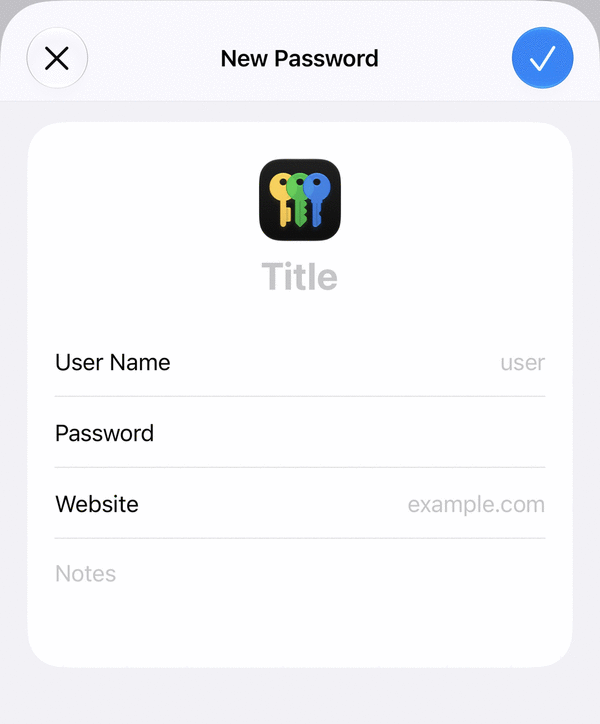
To add your own entries, you’d open the Passwords app and look for the + to create an entry. These manual entries don’t have to be for websites. You can use store manual password entries that don’t get auto filled, just as you would in a Notes app or even in a paper notebook at home. There is also a section in each entry for notes.
Any information you store in the Passwords app is encrypted and totally safe – even Apple can’t access it.
I think I’m going to make it my winter project to gather all my passwords and enter/import them into Apple Passwords and delete any old login information that is saved. I have a financial app on my phone for my retirement account and there are at least eight old logins saved in the list when I open that app. I need to remove all but the latest one and I just haven’t done it.
I encourage all Apple users to do some reading up on Apple’s Passwords app and see if it can be a solution to make your logins a lot more organized.
____
©2026 Tribune Content Agency, LLC.






Comments